Showing posts with label wds. Show all posts

Monday, 21 December 2009

The blessing that is OSD++ (OSDPlusPlus)


If you're limited to MDT or you're having a hard time getting SCCM to accept information\variables prior to OS Deployment, OSD++ might be exactly what you need!

OSD++ can run from a Task Sequence after you've added it's source directory to a package, by including different XML files you can request information from the user and apply any changes to the registry or to the unattended file itself.

It can read from and to the registry as well as give you easy access to WMI information.

OSD++ offers a quick and easy way to get the computername or install software based on the spesific choices made by the user.
The users can either fill in a textbox, with or without Regular Expressions to control that the input is valid, or with listboxes.

The choices can be stored in a XML for future use, in the registry or in the unattended file the computer is about to use for OS Deployment.

All it really lacks is LDAP support though you can "cheat" your way to this by using Distributed Files Service and a "IF EXSIST" Batch script.

Try it by downloading it here (Documentation)
Read more at the OSD++ Blog


Graded: A-
Only needs a few more features to make it a Must-Have-Software for anyone without SCCM and most with.

Edit: New grade based on new experiences

Friday, 5 June 2009

KSOD - My lil fix.

Okay, so here are "more detailed" instructions on how I fixed the Black Screen Of Death (KSOD) problem.

Like I said, the error in our case came about because a Group Policy Object I made included security permissions for several services, among them the services:

  • Remote Procedure Call (RPC)
    And
  • Remote Procedure Call (RPC) Locator.
The default settings presented included the Administrator Group and the SYSTEM & INTERACTIVE accounts.
The account "NT AUTHORITY\NetworkService" was not included meaning that when the account later would try to read a setting (or do anything else) regarding the RpcSs service, it would fail and the resulting error made the Operating system reboot as defined in the recovery settings.

To solve this I PXE booted the computer into Windows PE available on our WDS Server and started RegEdit.
I incorrectly stated earlier that I didn't apply the change to the Hive but a review showed me that I had.
See this guide on how to load the %windir%/system32/config/SYSTEM hive and finding the HKEY_LOCAL_MACHINE\SYSTEM\Select\Current KEY.

This Key tells you what ControlSet Vista is currently using ("Current"), by Default and which ControlSet is "Last Known Good".
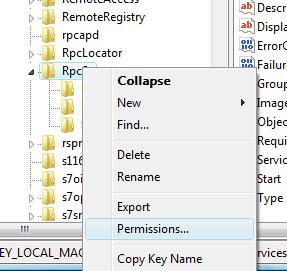
In my case the key for Current was 1, meaning HKEY_LOCAL_MACHINE\SYSTEM\ControlSet001\Services\RpcSs and the permissions applied to that container (or individual keys stored there) needed to be changed.

By right clicking on HKEY_LOCAL_MACHINE\SYSTEM\ControlSet001\Services\RpcSs and selecting "Permissions" I could grant NetworkService the READ right and before rebooting I made sure it was also applied with the help of inheritance.


Note: The first test was to grant the Account Full controll, which also worked but seems to be overkill.

  • Click on add
  • Click Advanced
  • Change Location to your Computer (if required)
  • Hit the find button and select the Network Service account.
  • Grant the account READ rights.
You might want to make sure the Enum and Parameters containers inherit the permissions as well.

After a Reboot, the Operating System should be able to boot as normal and the login window should show up after a short delay.

I hope this can help to shed some light on this problem for some of you, if it doesn't then feel free to drop me a line after checking out the other options presented below.
Last Revised:
17:47 - June 5th 2009

Tuesday, 24 March 2009

Win PE 2 boot from USB Key

Windows PE is a great tool for any IT Administrator.
Not only can it give you access to Windows Deployment or SCCM servers but it can boot up a computer that has crashed and allow for troubleshooting and file recovery and thats just the begining.

Win PE is usually executed and loaded over the network with the help of PXE ("Pixie") Boot but what if you for some reason can't get a PXE connection to your server?
Well in these cases you have two options, either use a DVD or USB Key to boot the machine and get the same level (if so desired) of access that you would if you were using PXE.

Since a USB is faster and better in every way, let's stick with that for now and please bear in mind that to complete these steps you will at the very least need to have a Windows Vista source (CD\DVD) on hand and WAIK installed.

Any Text like this:
"Type this command"
is meant to be typed.

Part 1:
Preparing USB Key for use

Start the Command Line, in Vista this needs to be done as an administrator.

XP: 
  • Press Windows button + R
  • "cmd"
Vista:
  • Press Windows button
  • "cmd"
  • Locate CMD icon at the top of the list and right click.
  • Chosse "Run as Administrator"
  • Confirm ACL (if any)
You now have the Command line (black and white console) open and you are ready to start Diskpart.
  • "diskpart"
  • "List Disk" 
  • Locate the number assosciated with your USB (for ex: 1)
  • "Sel disk 1" (Replace with your number) 

    (Make sure you do not select the wrong number or the next step might clean your hard drive and not the USB Key)

    WARNING: The next step destroys anything stored on the USB Key!


  • "Clean" 
  • "create par primary" 
  • "sel par 1" 
  • "act" 
  • "format fs=fat32" 
  • "Assign" 
  • "Exit" 
You can close the command line if you wish at this point.

Part 2:
Getting Win PE 2 on the key.

Okay! We've done the scary part, Easy huh? ;)
Unless you selected your computers HDD in the step above and cleaned it instead of your USB key, you should be ready for the next part.

So let's fire up the WinPE Console by going to 

Start->All Prog->Microsoft Windows AIK (WAIK) -> Windows PE Tools Command Prompt

What we are going to do now is to copy the files Win PE needs, this is a fairly automated thing but you need to tell it what kind of Architecture to use (X86 or 64) as well as where to place the files. (A folder that is not created is best)

So in the PE Tools console window type in the following but alter as needed:

  • "copycmd.cmd x86 c:\WinPEx86" 
    or
  • "copycmd.cmd amd64 c:\WinPEamd64" 
    or
  • "copycmd.cmd ia64 c:\WinPEia64" 
This will create the directory and copy the files as needed, you can add files to the C:\WinpeXX system when it is finished.

For example if you wish to add more tools (like imagex) then copy them into the \iso subdirectory
If you wish to tweak Win PE further then you can do this now before you copy the files over the USB key you prepared earlier.

Final Part:
Copy Windows PE 2 to USB Key.

The final command to issue now in the WinPE Console (command prompt) is the xcopy command that copies everything onto the USB Key that has the bootable partition on it.

This example presumes that:
  1. You copied into the c:\winpex86 folder
  2. That your USB is assigned the letter q:
  • "xcopy c:\winPEx86\iso\*.* /s /e /f q:\"
Now all you need to do is remove the USB and try it! 
By the way, you might need to change the BIOS settings so that your USB is placed above the hard drive in the boot order.